MerchantAI helps BigCommerce merchants delegate operational work to AI agents. This guide explains the minimum setup required to begin.
Before you begin
- Have access to the MerchantAI app installed for your BigCommerce store.
- Have an API key from at least one supported AI provider: OpenAI, Anthropic, or Google Gemini.
- Decide what you want your first agent to do. Additional agents, integrations, and employee access can be configured later.
Important: MerchantAI uses a bring-your-own-key (BYOK) model. AI model usage is billed by your chosen provider separately from your MerchantAI subscription.
Set up your first agent
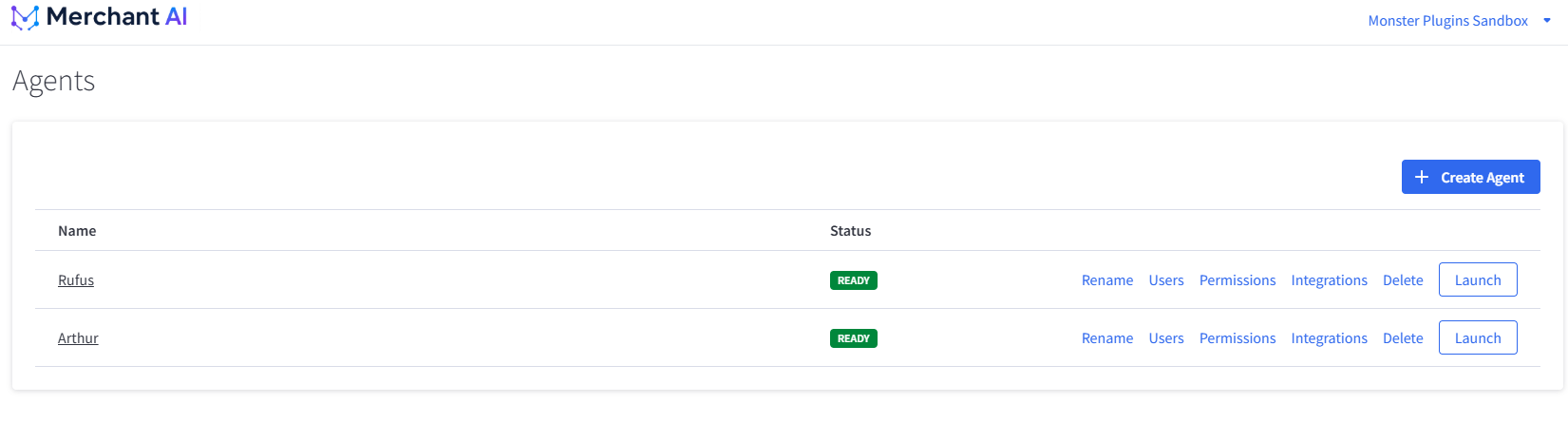
- Open MerchantAI and go to the Agents page.
- Select Create Agent and complete the on-screen setup.
- Wait for the agent to show READY in the agents list.
- Select Launch to open its workspace.
- Open Settings → Providers in the agent workspace, and configure an API key for a supported provider.
- Return to Chat, choose an available model, and send your first request.
A useful first request is:
Review my products and identify missing or weak SEO content. Explain which products need attention first.
What you can do next
After your first conversation, you can configure integrations, grant employees access to specific agents, restrict BigCommerce API permissions, or schedule recurring tasks.
The number of separate agent instances available depends on your MerchantAI subscription plan.
Related articles
Was this article helpful?
That’s Great!
Thank you for your feedback
Sorry! We couldn't be helpful
Thank you for your feedback
Feedback sent
We appreciate your effort and will try to fix the article